Add a shared mailbox to Outlook mobile
Body
Notes:
-
Outlook for iOS and Android supports shared mailboxes when your mailbox and shared mailbox are located in Exchange Online and using the native Microsoft sync technology.
-
Refer the following link for more information: Outlook for iOS and Android in Exchange Online: FAQ.
Use a shared mailbox on a mobile device (phone or tablet)
To access a shared mailbox on a mobile device, use the following steps.
-
Sign in to your primary account in Outlook for iOS or Android.
-
Tap the Add Account button in the left navigation pane, then tap Add a Shared Mailbox.
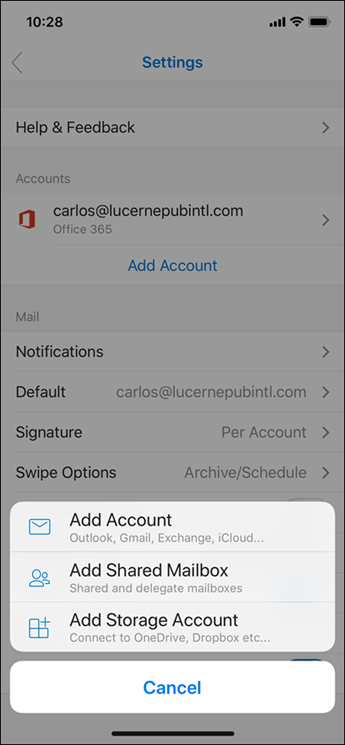
-
If you have multiple accounts in Outlook Mobile, select the account that has permissions to access the shared mailbox.
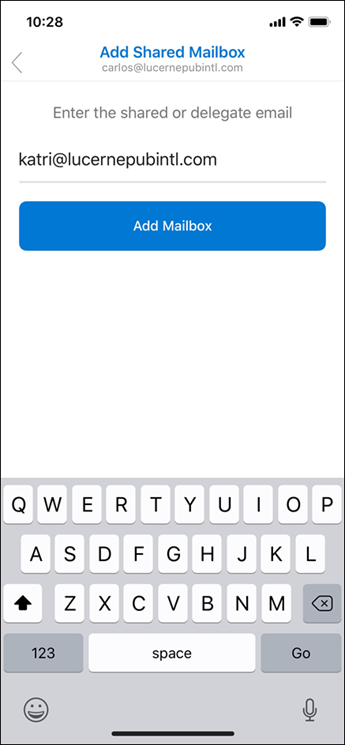
If directed, you may need to sign-in with your FAU email and password, then authenticate with MFA.
After the account setup process completes, the shared mailbox will display in your account list in Outlook for iOS or Outlook for Android.
To remove a shared mailbox, go to Settings > Accounts. Then tap on the shared mailbox and select Delete Account.
Details
Details
Article ID:
159991
Created
Thu 1/15/26 11:30 AM
Modified
Thu 1/15/26 11:44 AM