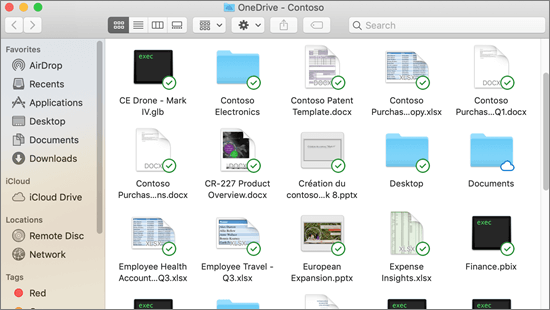
There are a few OneDrive Setup screens that are helpful to review during Mac setup.
This is your OneDrive folder
During setup, OneDrive chooses a default folder location. If you need to change the location, select Change Location on the This is your OneDrive folder screen.
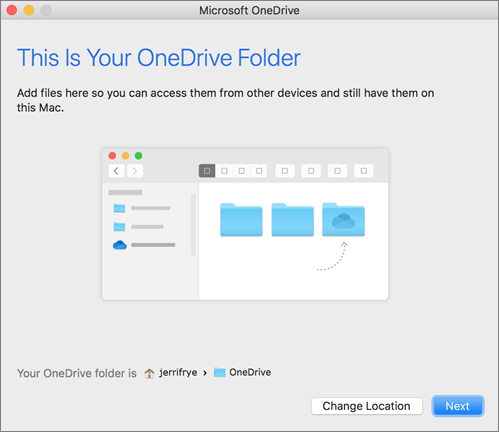
Select the location where you want to save your OneDrive files, then select Choose this location.
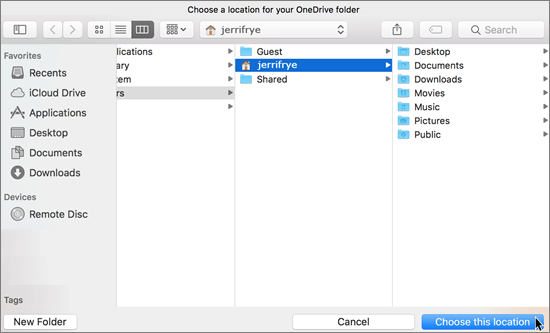
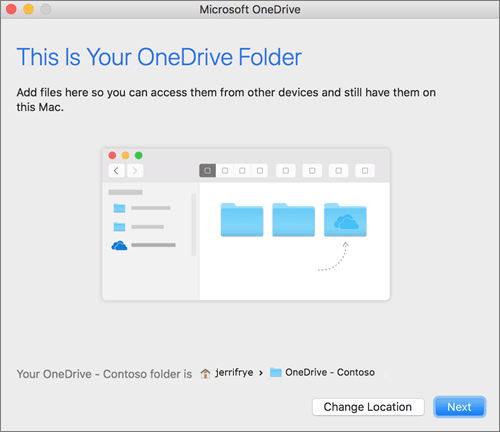
When the selected path appears, select Next to continue.
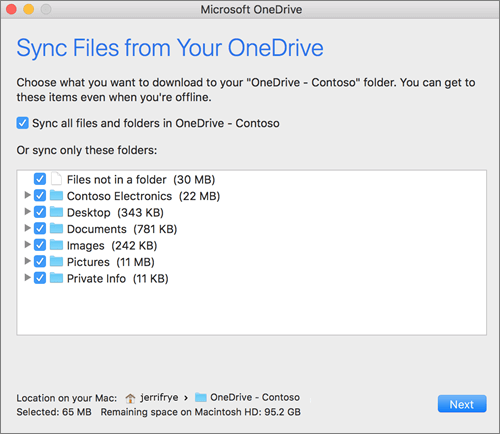
Choose folders to sync
On the Sync Files from Your OneDrive screen, choose the folders you want to sync to your Mac, then select Next. Choosing only the folders you need can reduce storage use and sync activity.
When setup is complete, select Open my OneDrive folder to view synced files.
You can find OneDrive in the Mac menu bar. You may see one cloud icon if you are syncing only one account, or multiple cloud icons if you are syncing multiple accounts.

You should also see a OneDrive folder in Finder, such as OneDrive - Florida Atlantic University.