Body
This article explains how to manage OneDrive sync settings, including pausing sync, choosing which OneDrive folders sync to your computer, and stopping sync for OneDrive, Teams, or SharePoint folders.
Before you begin: This article assumes OneDrive is already installed and signed in with your FAU account. Use your full FAU email address when signing in, such as FAUNetID@fau.edu or FAUNetID@health.fau.edu. You may be redirected to FAU single sign-on and prompted to authenticate with Microsoft Authenticator.
Important: The sync settings you choose are unique to each computer. If you change synced folders on one computer, that does not automatically change the sync settings on another computer.
Open OneDrive Sync Settings ▾
Use the OneDrive cloud icon to open sync settings.
- Select the white or blue OneDrive cloud icon in the notification area at the far right of the Windows taskbar.

Tip: You may need to select the Show hidden icons arrow to see the OneDrive cloud icon. If the OneDrive icon does not appear, OneDrive may not be running. Select Start, search for OneDrive, and open the app.
- Select Help & Settings or the gear icon.
- Select Settings.
Pause OneDrive Sync Temporarily ▾
You can pause OneDrive sync temporarily if you are troubleshooting, on a slow connection, or need to temporarily stop sync activity.
- Select the white or blue OneDrive cloud icon in the Windows notification area.
- Select Pause syncing.
- Select the amount of time you want to pause syncing, such as 2 hours, 8 hours, or 24 hours.
Note: While syncing is paused, changes may not upload or download until sync resumes.
Choose Which OneDrive Folders Sync ▾
You can choose which OneDrive folders appear on your computer. This helps reduce local storage use and keeps only selected folders visible in File Explorer.
- Select the white or blue OneDrive cloud icon in the Windows notification area.
- Select Help & Settings or the gear icon.
- Select Settings.
- Select the Account tab.
- Select Choose folders.
- In the Sync your OneDrive files to this PC dialog box, uncheck any folders you do not want to sync to your computer.
- Select OK.
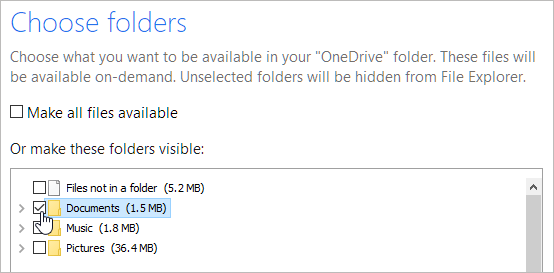
Important: You can only choose folders that are already located in OneDrive. You cannot add non-OneDrive folders, such as the root of C: or D:, from the Choose folders menu. To sync files, move or copy them into your OneDrive folder.
What happens if I uncheck a folder? If you uncheck a folder that is syncing to your computer, that folder is removed from the computer’s OneDrive folder view. The folder and its contents remain available online in OneDrive.
FAU Computer Sync Folder Notes ▾
If your FAU computer has the OneDrive Sync feature enabled, specific folders may automatically sync to your FAU OneDrive account.
Folders that may automatically sync
- Files not in a folder
- Desktop
- Documents
- My Data Sources
- Notebooks
- Pictures
Important: If you have files that you do not want synced to OneDrive, move them to a folder that is not configured to sync. The Downloads folder is commonly used for files that should remain local to the computer.
Note: Some folders may be managed by OneDrive backup or FAU device configuration. If you cannot uncheck a folder from Choose folders, contact the Help Desk for assistance before moving or deleting files.
Stop Syncing a OneDrive, Teams, or SharePoint Folder ▾
You may want to stop syncing a OneDrive, Teams, or SharePoint folder if you no longer need it on your computer.
- Select the white or blue OneDrive cloud icon.
- Select Help & Settings or the gear icon.
- Select Settings.
- Select the Account tab.
- Find the OneDrive, Teams, or SharePoint location you want to stop syncing.
- Select Stop sync.
- Confirm the prompt, if asked.
What happens when I stop sync? The folder is disconnected from syncing. Files that were already downloaded or locally available may remain on the computer, but online-only files may no longer appear in the local folder. The files remain available online if you still have access to the OneDrive, Teams, or SharePoint location.
Important: Stopping sync is not the same as deleting files from OneDrive, Teams, or SharePoint. Be careful before deleting any local files after stopping sync.
Important Sync Setting Notes ▾
- Sync settings are unique to each computer.
- If you choose folders on two computers and later create a new OneDrive folder on computer A, you may need to go to computer B and select that new folder before it syncs there.
- If you uncheck a synced folder, it is removed from that computer’s OneDrive folder view, but it remains available online.
- You can only select folders that already exist inside OneDrive.
- If you want a local folder to sync, move or copy the folder into OneDrive first.
- If OneDrive is paused, changes will not fully sync until syncing resumes.
- If OneDrive is signed out, paused, or showing a sync error, files may not update between the computer and OneDrive online.
Troubleshooting ▾
- If the OneDrive cloud icon is missing, open OneDrive from the Start menu on Windows or Spotlight Search on Mac.
- If the cloud icon is white or OneDrive is not signed in, sign in with your full FAU email address.
- If Microsoft Authenticator does not appear or authentication fails, verify that Microsoft Authenticator is set up and working for your FAU account.
- If Choose folders is unavailable, confirm that OneDrive is signed in and syncing.
- If a folder does not appear in the Choose folders list, confirm that the folder exists in OneDrive online.
- If a Teams or SharePoint folder does not appear, confirm that you still have permission to that team, site, or library.
- If sync changes do not take effect, pause and resume OneDrive sync, or close and reopen OneDrive.
Still Need Help?
If you need help managing OneDrive sync settings or stopping a OneDrive, Teams, or SharePoint folder from syncing, please contact the Help Desk at 561-297-3999 or submit a ticket for assistance.
Submit a OneDrive support request