This article explains how to access a shared or departmental mailbox in Outlook on the web, Outlook classic, New Outlook, Outlook for Mac, and Outlook mobile.
Before you begin: You must already have permission to access the shared or departmental mailbox. If you do not have access, your supervisor must submit a request for access before you follow these steps.
Shared Mailbox Overview ▾
Choose the appropriate option depending on the Outlook version you are using and how you need to access the mailbox.
- A shared mailbox may appear automatically in some Outlook versions after access is granted.
- If the mailbox does not appear automatically, you may need to add it manually.
- When you add a shared mailbox, it may appear as an option in the From field when composing messages.
- Outlook for Mac may not automatically map shared mailboxes the same way Outlook for Windows does, so Mac users may need to open the shared mailbox manually.
Open a Departmental Mailbox in Outlook on the Web ▾
Use these steps to open a departmental or shared mailbox from Outlook on the web.
- Go to https://outlook.office.com.
- Sign in with your own FAU email address and FAU password.
- Select your profile icon or initials in the upper-right corner.
- Select Open another mailbox.

- Enter the name or email address of the departmental or shared mailbox.
- Select Open or OK.
- The departmental or shared mailbox will open in Outlook on the web.
Add a Shared Mailbox in Outlook Classic for Windows ▾
Use these steps if you are using the classic Outlook desktop application on Windows.
- Open Outlook.
- Select File.
- Select Account Settings.
- Select Account Settings again from the drop-down menu.

- Select New.
- Enter the full email address of the departmental or shared mailbox.
- When prompted for a username and password, choose the option to sign in with a different account, if available.
- Enter your own FAU email address and FAU password.
- Complete the sign-in process.
- Restart Outlook.
- The departmental or shared mailbox should appear in the left navigation pane in Outlook.
Important: When prompted for credentials, sign in with your own FAU email address and password, not the shared mailbox email address, unless you were specifically instructed to use separate credentials for that account.
Add a Shared Mailbox in New Outlook for Windows ▾
Use these steps if you are using New Outlook on Windows.
- Open New Outlook.
- In the left navigation pane, right-click your account name.
- Select Add shared folder or mailbox.
- In the Add shared folder or mailbox dialog box, enter the name or email address of the shared mailbox.
- Select Add.
- The shared mailbox should appear in the left navigation pane.
Open a Shared Mailbox in Outlook for Mac ▾
Use these steps if you are using Outlook for Mac and need to open a shared or departmental mailbox.
- Open Outlook for Mac.
- Select File from the menu bar.
- Select Open.
- Select Shared Mailbox.

- In the Email address field, enter the email address of the shared mailbox.

- Under Authentication, use your own FAU credentials if prompted.
- To sync the shared mailbox, go to the Tools menu and select Sync.

Add a Shared Mailbox in Outlook Mobile ▾
If you use Outlook for iOS or Outlook for Android, you can add a shared mailbox if you have permission to access the mailbox.
Note: Outlook for iOS and Android supports shared mailboxes when both your mailbox and the shared mailbox are located in Exchange Online and using Microsoft sync technology.
- Open Outlook on your iOS or Android device.
- Sign in to your primary FAU account, if you are not already signed in.
- Tap the Add Account button in the left navigation pane.
- Tap Add a Shared Mailbox.
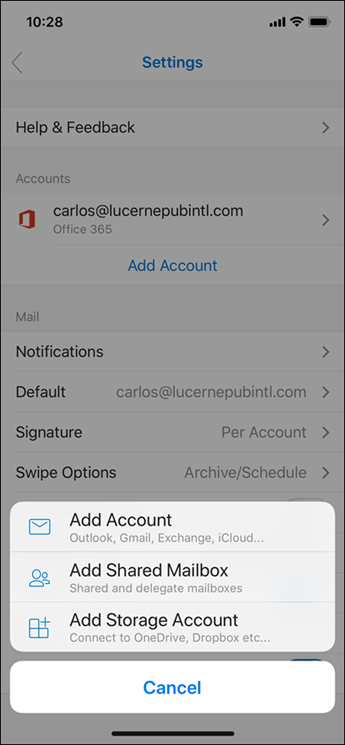
- If you have multiple accounts in Outlook mobile, select the account that has permission to access the shared mailbox.
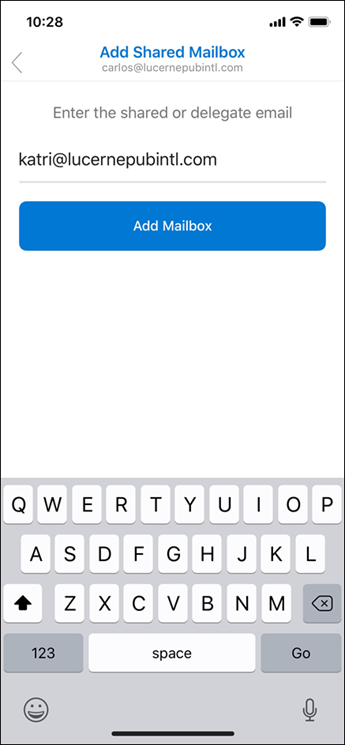
- Enter the shared mailbox email address, if prompted.
- If directed, sign in with your FAU email and password, then authenticate with MFA.
- After setup completes, the shared mailbox will display in your account list in Outlook for iOS or Outlook for Android.
Remove a shared mailbox from Outlook mobile
- Open Outlook mobile.
- Go to Settings.
- Select Accounts.
- Tap the shared mailbox.
- Select Delete Account.
Troubleshooting ▾
- If the shared mailbox does not appear, confirm that you have been granted access to the mailbox.
- If Outlook prompts for credentials, sign in using your own FAU email address and password.
- If the mailbox still does not appear, close and reopen Outlook.
- If you recently received access, wait a short period of time and try again.
- If Outlook mobile does not allow the mailbox to be added, confirm that the mailbox is supported in Exchange Online and that you are using the Outlook mobile app.
Still Need Help?
If you are unable to add or access the shared or departmental mailbox after following these steps, please contact the Help Desk at 561-297-3999 for assistance.