Set Up OneDrive on Windows or Mac

This article explains how to set up the Microsoft OneDrive sync app on a Windows or Mac computer using your FAU Microsoft 365 account.
Before you begin: Microsoft 365 access, including OneDrive, is only available while you maintain an active FAU student or employee status. OneDrive access will be deactivated after you leave FAU.
Sign-in reminder: Use your full FAU email address when signing in, such as FAUNetID@fau.edu or FAUNetID@health.fau.edu. You may be redirected to FAU single sign-on and prompted to authenticate with Microsoft Authenticator.

Benefits of OneDrive Sync

The OneDrive sync app keeps files available between your computer and your FAU OneDrive cloud storage.

  • Sync files between your computer and OneDrive.
  • Access files from your computer, mobile device, or web browser.
  • If you add, change, or delete a file in your OneDrive folder, the change can sync to OneDrive online.
  • If you add, change, or delete a file in OneDrive online, the change can sync back to your computer.
  • Work with synced files from File Explorer on Windows or Finder on Mac.
  • Use Files On-Demand to view files without downloading every file to your computer.
Note: Files must finish syncing before they are fully available across devices. Sync time can vary depending on file size, network connection, and the number of files being synced.

Set Up OneDrive on Windows

Many Windows computers already have the OneDrive app installed. If OneDrive is not installed, you may need to install it or contact the Help Desk for assistance.

If no account is signed in to OneDrive

  1. Select the Start button.
  2. Search for OneDrive.
  3. Open the OneDrive app.

Searching for the OneDrive desktop app in Windows

  1. When OneDrive Setup opens, enter your full FAU email address.
  2. Select Sign in.
  3. Complete FAU single sign-on and Microsoft Authenticator verification, if prompted.
  4. Follow the remaining prompts to finish setup.

First screen of OneDrive Setup


If another account is already signed in to OneDrive

If another OneDrive account is already signed in and you need to add your FAU account, add it from OneDrive settings.

  1. Select the white or blue OneDrive cloud icon in the Windows notification area.

OneDrive blue and white cloud icons in Windows notification area

Tip: You may need to select the Show hidden icons arrow to see the OneDrive cloud icon. If the OneDrive icon does not appear, select Start, search for OneDrive, and open the app.

Show hidden icons button in Windows

Windows system tray with hidden icons arrow

  1. Select Help & Settings or More, then select Settings.

Opening OneDrive settings from the Windows notification area

  1. Select the Account tab.
  2. Select Add an account.

OneDrive Add an account option

  1. When OneDrive Setup opens, enter your full FAU email address.
  2. Select Sign in.
  3. Complete FAU single sign-on and Microsoft Authenticator verification, if prompted.

First screen of OneDrive Setup

Note: You can add multiple work or school OneDrive accounts, but only one personal OneDrive account can be active on a computer.

Key Windows Setup Screens

There are a few OneDrive Setup screens that are helpful to review during setup.

This is your OneDrive folder

On the This is your OneDrive folder screen, select Next to accept the default folder location. If you need to change the folder location, select Change location. This is the best time to make that change.

This is your OneDrive folder screen in the OneDrive setup wizard


All your files, ready and on-demand

On the All your files, ready and on-demand screen, OneDrive explains how files are marked as online-only, locally available, or always available. Files On-Demand helps you access OneDrive files without downloading every file to the computer.

Files On-Demand screen in the OneDrive setup wizard


See and manage OneDrive files in File Explorer

After setup is complete, your FAU OneDrive files should appear in File Explorer. Personal files may appear under OneDrive - Personal, while FAU files should appear under an organization folder such as OneDrive - Florida Atlantic University.

OneDrive files in Windows File Explorer

You may also see a OneDrive cloud icon in the Windows notification area. The cloud icon can be used to check sync status and access settings.

OneDrive sync client cloud icon

To change which folders sync to the computer, open OneDrive settings and go to Account > Choose folders.

OneDrive account settings dialog

Set Up OneDrive on Mac

When you install and sign in to the OneDrive sync app for Mac, a OneDrive folder is created on the Mac. Files added, changed, renamed, or deleted in that folder sync with OneDrive online.

Install or open OneDrive for Mac

  1. If OneDrive is not installed, install OneDrive for Mac: Download OneDrive for Mac.
  2. Open OneDrive.

If no account is signed in to OneDrive

  1. Press Command + Space to open Spotlight Search.
  2. Type OneDrive.
  3. Open OneDrive.
  4. Enter your full FAU email address.
  5. Select Sign in.
  6. Complete FAU single sign-on and Microsoft Authenticator verification, if prompted.

First page of OneDrive Setup on Mac


If a personal account is already signed in to OneDrive

If a personal OneDrive account is already signed in, add your FAU work or school account from OneDrive Preferences.

  1. Select the OneDrive cloud icon in the Mac menu bar.
  2. Select the three dots to open the menu.
  3. Select Preferences.

Opening OneDrive Preferences on Mac

  1. Select the Account tab.
  2. Select Add an Account.

Adding an account in OneDrive Preferences on Mac

  1. Enter your full FAU email address.
  2. Select Sign in.
  3. Complete FAU single sign-on and Microsoft Authenticator verification, if prompted.

First page of OneDrive Setup on Mac

Key Mac Setup Screens

There are a few OneDrive Setup screens that are helpful to review during Mac setup.

This is your OneDrive folder

During setup, OneDrive chooses a default folder location. If you need to change the location, select Change Location on the This is your OneDrive folder screen.
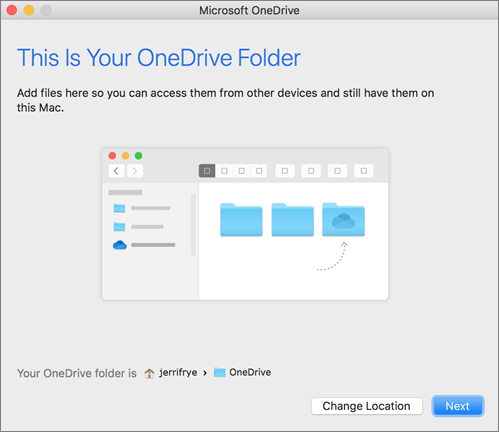
This is your OneDrive folder screen on Mac

Select the location where you want to save your OneDrive files, then select Choose this location.
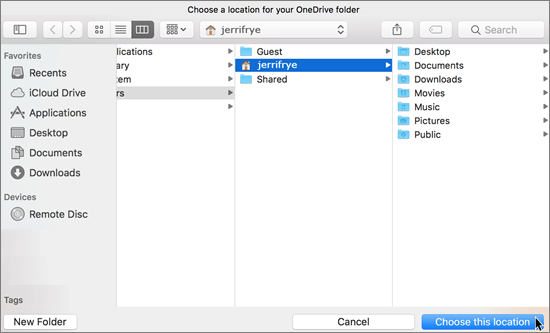
Choosing a OneDrive folder location on Mac

When the selected path appears, select Next to continue.
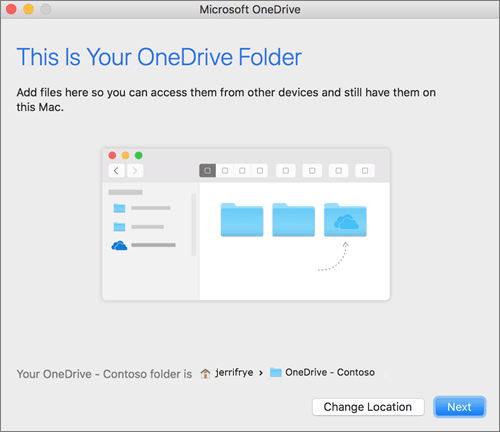
OneDrive folder screen after choosing a location on Mac


Choose folders to sync

On the Sync Files from Your OneDrive screen, choose the folders you want to sync to your Mac, then select Next. Choosing only the folders you need can reduce storage use and sync activity.
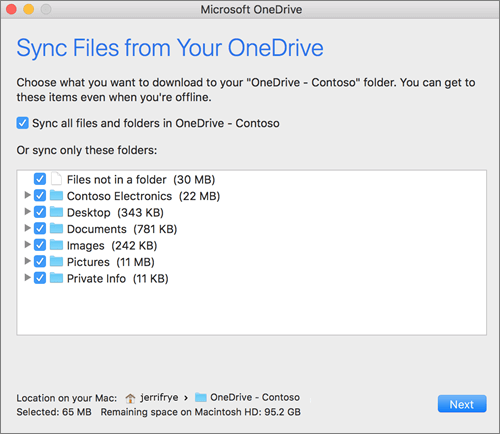
OneDrive setup screen for selecting which folders sync on Mac

When setup is complete, select Open my OneDrive folder to view synced files.

You can find OneDrive in the Mac menu bar. You may see one cloud icon if you are syncing only one account, or multiple cloud icons if you are syncing multiple accounts.

OneDrive cloud icon in the Mac menu bar

You should also see a OneDrive folder in Finder, such as OneDrive - Florida Atlantic University.
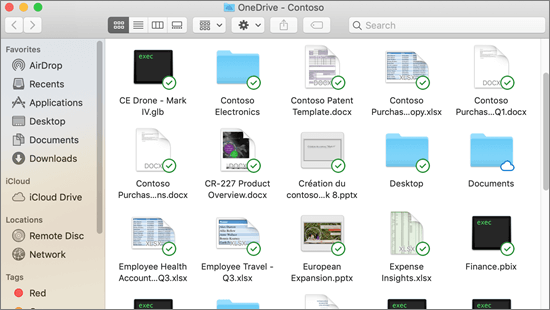
OneDrive folder in Finder with sync overlays

Turn On Finder Integration on Mac

Finder integration allows OneDrive sync status icons to appear in Finder. Menu names may vary depending on the macOS version.

  1. Open System Settings or System Preferences.
  2. Look for Extensions, Finder Extensions, or a related OneDrive extension setting.
  3. Enable OneDrive Finder Integration.
  4. Open your OneDrive folder in Finder to confirm sync status icons appear.

System Preferences on Mac

Extensions settings on Mac

Finder integration showing OneDrive sync overlays

Note: If you do not see these exact menu names, use the search field in System Settings to search for Extensions or OneDrive.

Sync SharePoint or Teams Files

You can also use OneDrive to sync files from SharePoint sites or Microsoft Teams file libraries to your computer.

Note: Microsoft Teams files are stored in SharePoint. Depending on what you need, you may be able to use Add shortcut to OneDrive or the Sync button from the document library.
  1. Open the Microsoft 365 app launcher.
  2. Select SharePoint.

Microsoft 365 app launcher icon

Microsoft 365 app launcher with SharePoint highlighted

  1. Open the site or team file library you want to sync.
  2. Select Documents or navigate to the folder you want to sync.
  3. Select Sync.

Sync button in a SharePoint document library

  1. If the browser asks for permission to open Microsoft OneDrive, allow it.
  2. Choose the folders you want to sync.
  3. Select Start sync.

Manage synced SharePoint or Teams sites

  1. Select the OneDrive cloud icon.
  2. Open Preferences or Settings.
  3. Select the Account tab.
  4. Use Choose Folders to change which folders sync.
  5. Use Stop Sync if you no longer want that site or library synced to the computer.

OneDrive Account tab on Mac showing synced locations

OneDrive Sync on FAU Computers

If your FAU computer has the OneDrive Sync feature enabled, you must sign in to your FAU OneDrive account for syncing to begin.

The OneDrive Sync feature may sync data from specific folders on the computer to your FAU OneDrive account.

Folders that may sync from your FAU computer

  • Files not in a folder
  • Desktop
  • Documents
  • My Data Sources
  • Notebooks
  • Pictures
Important: If you have files that you do not want synced to OneDrive, move them to a folder that is not configured to sync. The Downloads folder is commonly used for files that should remain local to the computer.
Note: Sync settings may vary depending on the computer, account, and FAU configuration.

Troubleshooting

  • If you cannot sign in, make sure you are using your full FAU email address.
  • If you are prompted to choose an account type, select Work or school account.
  • If Microsoft Authenticator does not appear or authentication fails, verify that Microsoft Authenticator is set up and working for your FAU account.
  • If the OneDrive cloud icon is missing, open OneDrive from the Start menu on Windows or Spotlight Search on Mac.
  • If OneDrive opens online but files are not syncing to the computer, check the OneDrive cloud icon for sync errors.
  • If files are not appearing locally, make sure the folder is selected under Account > Choose folders.
  • If a SharePoint or Teams library does not sync, confirm that you have permission to access the site or team.
  • If access was recently granted, wait a short period of time and try again.

Still Need Help?

If you are unable to set up OneDrive sync or are experiencing issues with OneDrive syncing, please contact the Help Desk at 561-297-3999 or submit a ticket for assistance.

Submit a OneDrive support request